Visual Studio Code
Nextest integrates with Visual Studio Code so you can run and debug tests.
Requirements
- rust-analyzer 0.3.2862 or above (installed automatically by VS Code's rust-analyzer extension)
- A recent version of nextest.
Running tests from within VS Code
Add this to your VS Code settings, either for an individual workspace or globally in your user settings:
{
    // ...
    "rust-analyzer.runnables.test.overrideCommand": [
        "cargo",
        "nextest",
        "run",
        "--package",
        "${package}",
        "${target_arg}",
        "${target}",
        "--",
        "${test_name}",
        "${exact}",
        "${include_ignored}"
    ],
    // ...
}
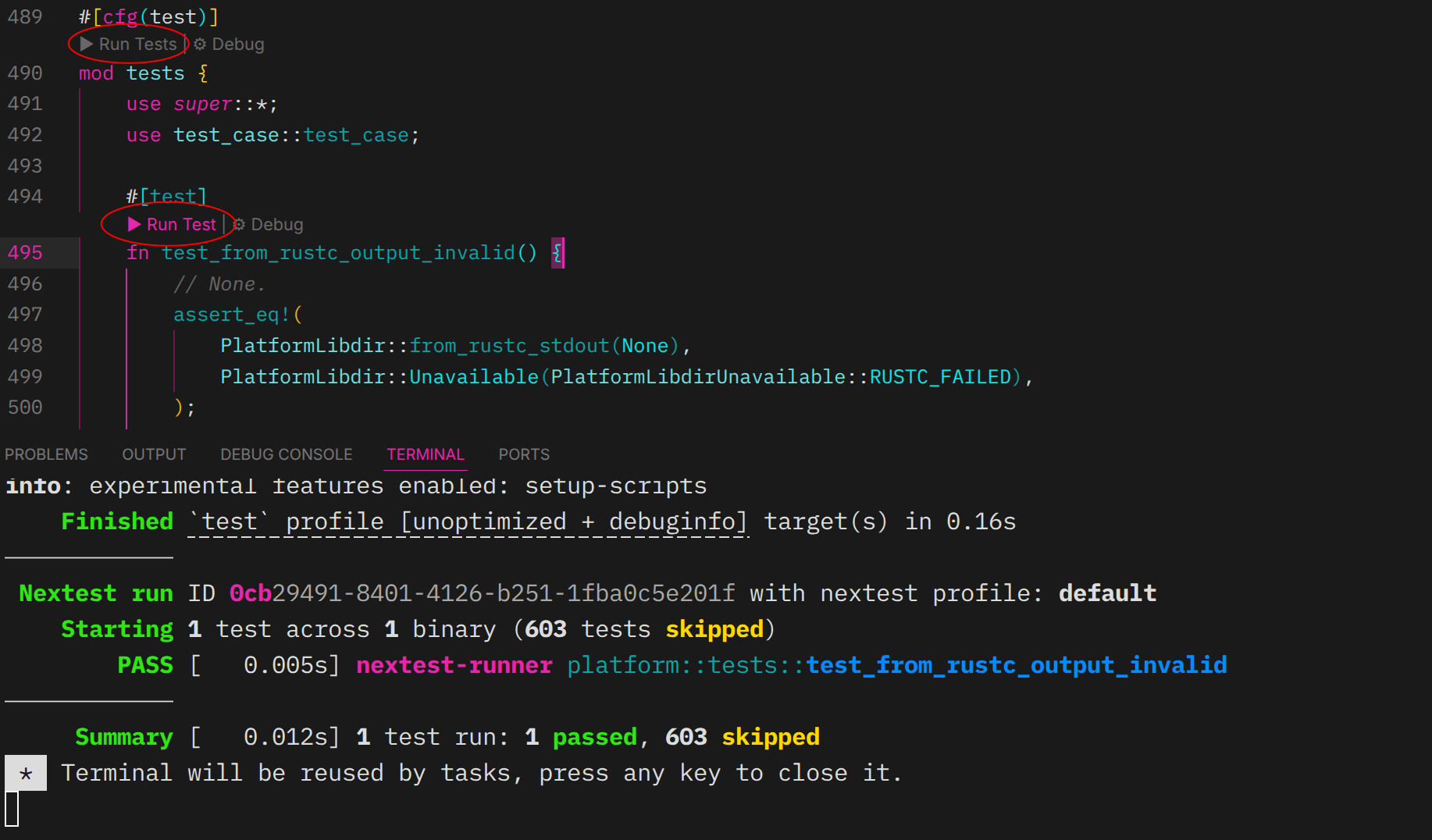
Then, the Run Test and Run Tests buttons will invoke nextest.
Debugging tests in VS Code
To debug a test with the nextest environment configured, you must use nextest's debugger integration with CodeLLDB. This requires a small amount of one-time setup.
Invoking the debugger from VS Code
Invoking a debug session from within VS Code will not configure nextest-specific environment variables, including those set by setup scripts. If your test depends on any of these variables, you must invoke nextest from the command line.
Install the CodeLLDB extension if you haven't already.
Then, install the codelldb-launch tool:
cargo install --locked --git https://github.com/vadimcn/codelldb codelldb-launch
After that, open Visual Studio Code, set up your breakpoints, and enable the CodeLLDB RPC server by adding lldb.rpcServer to the workspace configuration.
{
  // ...
  "lldb.rpcServer": {
    "host": "127.0.0.1",
    "port": 12345,
    "token": "secret"
  },
  // ...
}
In your terminal, set up the token, then execute the test under the codelldb-launch debugger:
export CODELLDB_LAUNCH_CONFIG="{ token: 'secret' }"
cargo nextest run --debugger "codelldb-launch --connect 127.0.0.1:12345 --" my_test
For more information about CodeLLDB, see its manual.
If breakpoints aren't being hit
If you're not seeing your breakpoints being hit, see these instructions in the CodeLLDB wiki.
A common cause of breakpoints not being hit is a missing source remap. This can happen if your source directory is symlinked to somewhere else. For example, if /home/user/dev/dir is symlinked to /opt/src/dev/dir, try adding to .vscode/settings.json:
{
  // ...
  "lldb.launch.sourceMap": {
    "/opt/src/dev/dir": "/home/user/dev/dir",
  }
  // ...
}
Configuration autocomplete
For autocomplete and validation in nextest configuration files, install the Tombi extension for VS Code:
ext install tombi-toml.tombi
The Tombi language server automatically downloads nextest's JSON schemas from the JSON Schema Store, so no additional setup is required. Both repository configuration (.config/nextest.toml) and user configuration files are supported.
Other TOML extensions are not supported
The Even Better TOML extension is not supported since it uses the taplo language server which has a crash bug when validating nextest's schemas.